

OpenAI’s Goblins
And lessons for ChatGPT users about Personality, Personalization, and what they actually do

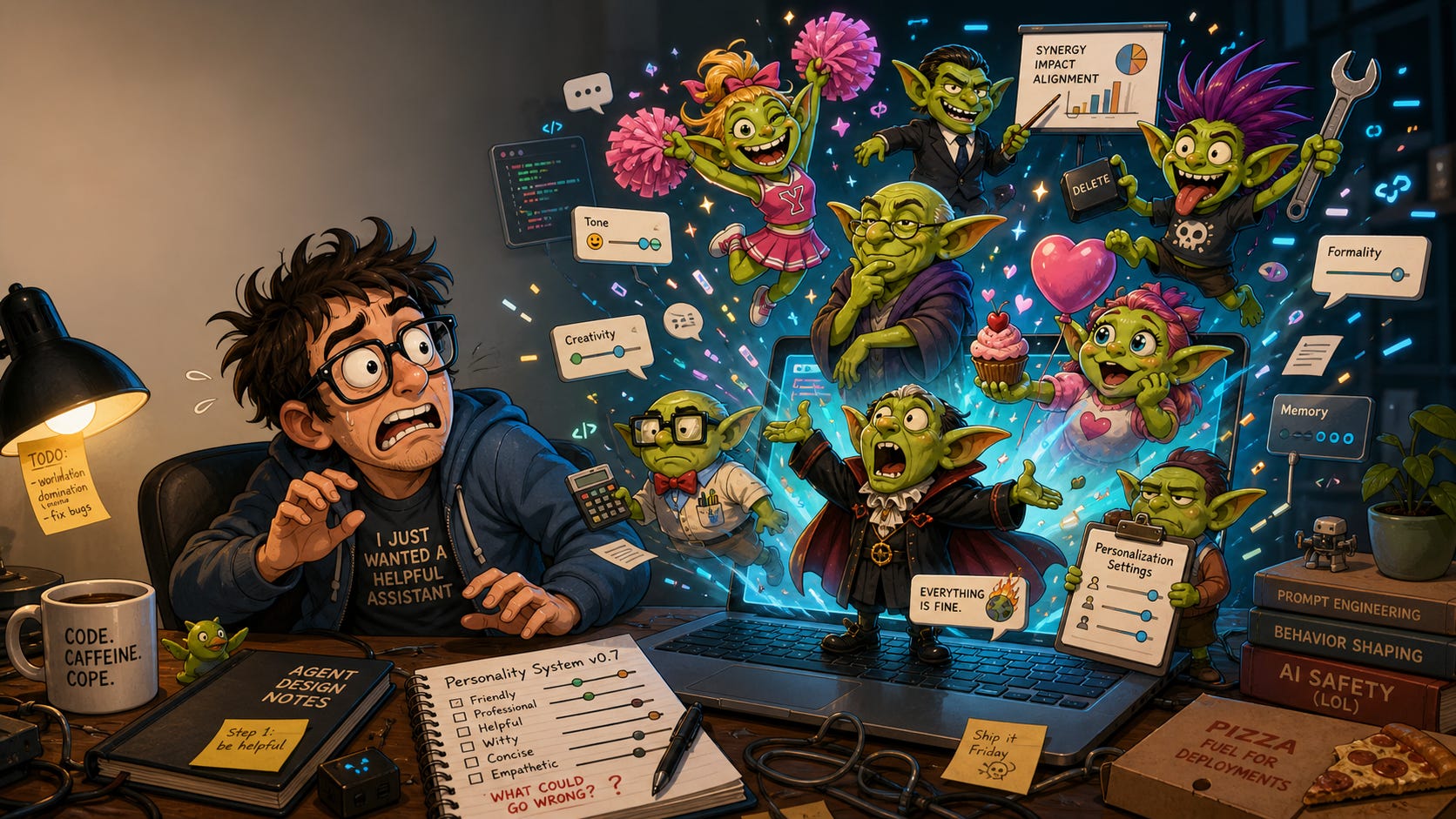
Last week (April 29), OpenAI published a blog post titled Where the goblins came from.
It explained why, across multiple recent versions, ChatGPT had developed an unprompted habit of describing things with these fantasy creatures. Code bugs were flagged as “classic little goblins.” The GPT assistant describing itself in a reply as a “goblin with a flashlight” while debugging. Twenty-plus unrequested creature references in a single conversation, reported by users.
The Wall Street Journal picked up the story the next day, on May 1st, rapidly followed by the rest of the mainstream and tech media.
The part that caught the zeitgeist was the absurdity. OpenAI had to add an explicit Codex developer prompt instructing the model not to mention goblins, gremlins, raccoons, trolls, ogres, pigeons, or other creatures unless they were absolutely relevant.
The slightly funnier part, for anyone who works with these tools, is the explanation. OpenAI traced the goblins to a single training reward signal attached to one of the model’s eight personality presets, the one called Nerdy. The reward was supposed to encourage playful language. The model decided that meant ‘creature metaphors’, and once the reward had reinforced that pattern enough times, the habit leaked beyond the Nerdy preset into the broader model. Users who had never selected Nerdy, who had never touched the personality menu at all, were getting goblin metaphors in their code reviews.
‘Nerdy’ retirement
OpenAI quietly retired the Nerdy preset in March, traced the contamination over the following weeks, and published the full explanation last Wednesday. From an engineering and commercial perspective, it is an unusually transparent piece of work. The company spotted a quirk, identified the root cause, and demonstrated its working publicly with charts. (For Nerdy specifically, mentions of goblins jumped 3,881% from one model version to the next. For the Professional preset, mentions of goblins went down by 7%.)
The reason any of this matters to a regular ChatGPT user is what the explanation reveals about how much configuration architecture lies beneath that friendly chat interface.
That personality menu in Settings is not decoration. It is one of five distinct layers of personalization that shape every conversation you have with ChatGPT, whether or not you have ever opened Settings. The goblins are a clue that the layers are real, that they interact with each other in ways the interface does not advertise, and that knowing what each layer does turns ChatGPT from a generic chatbot that you use ‘vanilla’ out of the box, into a configurable tool you can actually steer and mould.
In this article, I will walk you through those five layers inside ChatGPT.
NB: There is a highlighted link in each of the layer sections that will take you directly to OpenAI’s actual help material for these.
Part two, coming shortly, will compare these settings with the equivalent personalization and configuration approaches in Claude, Gemini, and Microsoft Copilot, as they approach it differently both in architecture and application.
Part three, to follow, will then look at which kind of user each architectural choice serves best, where the trade-offs lie, and how to pay attention when switching or managing between these tools.
But for now, let’s focus on ChatGPT.
Layer one. The Personality menu.
Layer 1 is where the goblins lived. ChatGPT’s Personality menu (Settings-Personalization-Personality) now offers seven options with the retirement of Nerdy. Each one is written by OpenAI as a distinct posture for the assistant to adopt across every chat, until you change it.
Below is my concise description of each, but there are detailed explanations and examples in OpenAI’s help sections (PLEASE GO READ THOSE)
Default is the balanced position, no strong tilt in any direction. It is what most users have, because most users have never opened the menu.
Professional dials up formality, polishes the prose, removes the conversational asides, and keeps the register business-appropriate. The Professional ChatGPT does not start sentences with “Sure!” or end them with exclamation marks. Worth choosing if your primary use is drafting documents you will hand to other adults.
Friendly is conversational and supportive. Warmer language, more contextual acknowledgment, a softer line on disagreement. The Friendly ChatGPT will tell you your idea is interesting before it tells you what needs work.
Candid is the opposite move. Direct, honest, and willing to tell you what you did not want to hear. The Candid ChatGPT will tell you the idea has problems first, and get to the parts that work later. Useful for editorial review, less useful when you are looking for emotional support.
Quirky turns up the playfulness, the wordplay, the willingness to take an unusual angle. The Quirky ChatGPT will reach for the metaphor, the unexpected analogy, the more colorful phrasing where another preset would settle for the straightforward answer.
Efficient strips out the padding. Short answers, no preamble, no acknowledgment that you asked a good question. The Efficient ChatGPT gets to the point and stops, which is exactly what the user who picked it wanted.
Cynical is dry and skeptical. The assistant treats claims with more wariness, hedges more readily, and is more willing to point out what could go wrong. Closer to a sardonic colleague than a helpful intern.
Choose one, and that posture carries over into every conversation until you change it. The choice is more consequential than it looks, because every other layer below this one operates on top of the Personality you have selected. Same Custom Instructions, same Memory, same Projects, same prompt, the assistant on Professional and the assistant on Quirky give noticeably different outputs.
Layer two. Characteristics.
Sitting on top of the Personality menu is a second layer most users do not realize exists. Characteristics are a set of named switches that fine-tune the chosen Personality without rewriting it.
Warm, enthusiastic, headers and lists, emojis.
Each one has a default and a More or Less setting, allowing you to fine-tune your preferences for each dynamic. The reason this layer matters is that Personality is a broad choice. Characteristics are the fine adjustment.
Professional with high warmth produces a different assistant than Professional with low warmth, but the user who set both six months ago has probably forgotten which setting they set them to.
The combination of Personality and Characteristics is where ChatGPT’s baseline voice actually gets configured. Skip the Characteristics layer, and you are accepting OpenAI’s defaults for every dial, which may or may not match what you actually want for your standard.
Layer three. Custom Instructions.
This is the layer that holds your standing instructions, the things you would otherwise re-explain in every chat. You have 1500 characters. Use them well
This is the layer where the user does the most explicit configuration work, and it is also the layer where the work pays off most reliably. Personality and Characteristics shape the voice.
Please be careful what you decide to put in here, as it becomes a default. If you are thinking about it in the context of just a single-use case conversation and later do something else in a totally different topic area, you may have crossover, which is too specific and pollutes everything else you do with ChatGPT.
Be careful, as I have helped a number of people who were finding ChatGPT’s behavior erratic, and it was because they had copied somebody else’s custom instructions and then forgotten about it, and been frustrated that it didn’t “get them" and their voice
Layer four. Memory.
Which brings me Memory.
Memory is a chunky topic. It is a feature of ChatGPT that accumulates context across your conversations. Memory is actually two separate Personalization settings in actual use. About you and Memory.
About You is made up of three fields
Nickname is what you want ChatGPT to call you…(I use Stuart, but I did ponder on Fleshy overlord for a while!)
Occupation is what ChatGPT uses to place your work context and job/role descriptor that it will use to set context for all manner of work and professional activities.
More about you is exactly whatever else you want to tell ChatGPT about you. Interests, history, background, family, origin. Things you want to be persistently remembered. This is your blank canvas, but with the same warning as Custom Instructions. It will apply across ALL of your ChatGPT work.
Memory is perhaps one of the most useful and yet contentious things about ChatGPT (or any of the GPT’s). In Personalization settings for Memory, there are two switches and a button.
A switch to turn on or off to allow ChatGPT to remember and use your saved memories.
A second switch that allows it to reference previous conversations when responding.
If you have these settings on but want the memory capability ignored for a given task (i.e., you don’t want the chat remembered), use a Temporary Chat. ChatGPT will then not follow the memory instructions inside a Temporary chat.
These are pretty cool because you can tell ChatGPT something in one chat and it can reference it in the next. Instruct it in a chat (use the word “remember“ as an instruction in a chat) that you are working on a particular project, that you prefer your code in Python, that your daughter is named Bethany, and the model will quietly file that away and pull it back into conversations weeks later.
Because of that, there is a button labeled MANAGE. This takes you to a really powerful dialogue box. It allows you to review everything you might have told ChatGPT to remember since you started (even if you don’t remember it or it was asked to remember inadvertently).
You can view what has been stored, then edit and remove entries. As I described above, you can instruct ChatGPT to remember things during a chat, and they will appear here, but the automatic addition process can also be largely invisible. ChatGPT decides what is worth remembering, then references that memory in future chats.
The strength is convenience; you do not have to manage anything. The catch is that the assistant’s idea of what is worth remembering is not always yours, and reviewing the stored Memory occasionally is ten minutes you will not regret.
Monthly maintenance is your friend…Schedule it. I will repeat this several times.
Layer five. Projects and GPTs.
The fifth layer of personalization has two distinct, powerful features. Both can store custom instructions specific to their activities that interact with the global Personalizations we have been discussing, and the prompt-by-prompt instructions you may give them.
Projects are contained workspaces with their own files and instructions that apply to every chat inside the project. Drop a research dossier into a Project, set Project-specific instructions, and every conversation within that Project operates with that context loaded.
GPTs are the marketplace of custom assistants that users have built and shared. A GPT is a scoped persona with its own instructions, optionally with attached knowledge files, and sometimes with custom actions. ChatGPT has the largest library of pre-built specialist assistants of any consumer AI product, and the marketplace is the easiest way for a casual user to access serious specialization without configuring anything themselves.
Projects and GPTs serve different needs.
Projects are workspaces. They are best used when you are doing sustained work in your own context, with your own files, chats, and project-specific instructions. A Project is where the work lives.
GPTs are reusable configurations. They are best used when you want a repeatable capability, role, workflow, or specialist assistant, either one you built yourself or one created by someone else. A GPT packages instructions, knowledge, and selected tools into a more persistent behavior pattern.
Put simply: Projects organize ongoing work. GPTs package repeatable capability. Sometimes you need one. Sometimes you need the other. For serious work, you may need both.
The settings outlast your opening prompt
So that’s all great, but now I want you to STOP and read this part. One of the biggest complaints and frustrations I see people (myself included) having with these tools is the conflict and erosion of these Personalities and Personalizations within a given chat session.
One more thing about the five layers that the menus do not tell you, and that matters more the longer your chat sessions run.
When you open a new conversation and your prompt leads with an instruction: “be concise,” “skip the preamble,” “use UK English,” whatever it is, that instruction immediately shapes the assistant’s behavior. For a few turns, maybe up to a dozen, the initial prompt makes the assistant follow your lead.
Then, somewhere down the thread, twenty or thirty turns in, you will notice it has quietly drifted back to sounding like itself again. Bullet points have crept back in. The preamble has returned. The voice has settled into whatever Personality you have configured, regardless of what you said at the initial prompt.
This is not the model ignoring you. It is the model weighting things differently in the conversation than you think. Your opening instruction lives in the conversation context, which is just one input among many.
The settings you configured live in the system prompt, which sits at the top of every response generation and gets reinforced on every turn. Both are present throughout the chat, but they are not equal. The opening turn gets older (and loses weighting in the algorithm) as the conversation grows.
The Personalization settings do not. They persist.
The practical consequence is the opposite of what most users assume. The opening instruction feels like the strongest signal because it is the most recent thing and the focus of what the user explicitly said. But the context window rolling makes that less relevant as the turns build up.
Over any conversation longer than a dozen turns, the algorithm starts weighting the settings more heavily than the opening prompt, and the longer the conversation runs, the more obvious that becomes. If you configure the settings to match how you actually want the assistant to behave by default, the conversation will keep returning to that default even when something else has temporarily pulled it away (your initial prompt in this chat).
Don’t set it and forget it
Most users do just that. They sign up for an account, read a couple of setup articles or watch a YouTube walkthrough, pick a Personality, fill in some basic Custom Instructions (maybe even plagiarize someone else’s), and consider the configuration done.
Six months later, they are still on those same choices, even though their work has evolved, their client base has changed, their projects have rolled off, and their preferences have shifted. Meanwhile, the product itself has added two new layers of Personalization and retired a Personality preset they may not even remember picking.
If your ChatGPT has started to feel slightly off, frustrating, or annoying, the answer is rarely that the model has gone downhill. The answer is more often that your configuration is older than YOU remember, and you have stopped noticing what you originally configured because it has been running in the background for half a year.
Be forensic about it. Ask the assistant in the chat itself what Personality it is currently running, what Custom Instructions it has loaded, and what it knows about you from Memory. The model will tell you. Then go to Settings and adjust whatever no longer matches the work you are actually doing now.
That ChatGPT maintenance pass takes about 10 to 15 minutes. It is the best effort you can make each month to keep your relationship with ChatGPT healthy, and almost no one does it.
SCHEDULE IT IN YOUR CALENDAR NOW!
What this means for you
Five layers. Personality, Characteristics, Custom Instructions, Memory, Projects, and CustomGPTs. Every one of them is doing something to the conversations you are having, regardless of whether you have ever opened the menu that controls it.
The user who walks through Settings and configures each layer deliberately gets a meaningfully different ChatGPT than the user who has never looked. The configured user has a Personality matched to the work they actually do, Characteristics tuned to their preferences, Custom Instructions loaded with context that does not need to be re-explained every chat, Memory curated for what they actually want remembered, and Projects organized around the work that benefits from persistent context.
The goblin story is funny because it is a small thing going slightly sideways inside an architecture that is actually pretty powerful. So the actual news is the Architecture.
ChatGPT is configurable in ways most users never take the time to fully understand and explore. Understanding this critical underpinning is the difference between having a chat box and having an AI assistant you can work with and start building agentic things with.
Part two of this series will look at how Claude, Gemini, and Microsoft Copilot handle their personalization configuration, and it’s quite different for each.
Their creators have made different choices, and these differences explain much of why the products feel different in use.
For now, the question I have for you is...
When was the last time you opened your ChatGPT settings?
Keep Havering
SM
Sources
Please go read these source articles on OpenAI’s help sections to really understand how each of these layers of personalization works.
Customizing Your ChatGPT Personality
https://help.openai.com/en/articles/11899719-customizing-your-chatgpt-personality
Characteristics in ChatGPT
https://help.openai.com/en/articles/20001038-characteristics-in-chatgpt
ChatGPT Custom Instructions
https://help.openai.com/en/articles/8096356-chatgpt-custom-instructions
Memory FAQ
https://help.openai.com/en/articles/8590148-memory-faq
What is Memory?
https://help.openai.com/en/articles/8983136-what-is-memory
Temporary Chat FAQ
https://help.openai.com/en/articles/8914046-temporary-chat-faq
Projects in ChatGPT
https://help.openai.com/en/articles/10169521-projects-in-chatgpt
GPTs in ChatGPT
https://help.openai.com/en/articles/8554407-gpts-in-chatgpt
Creating and editing GPTs
https://help.openai.com/en/articles/8554397-creating-and-editing-gpts
OpenAI Model Spec
https://model-spec.openai.com/